Day 40 AWS EC2 Automation ☁
Greetings cloud enthusiasts! Today, let's dive into the world of Amazon EC2 automation and explore the power of launch templates, instance types, and AMIs.
Launch Template in AWS EC2
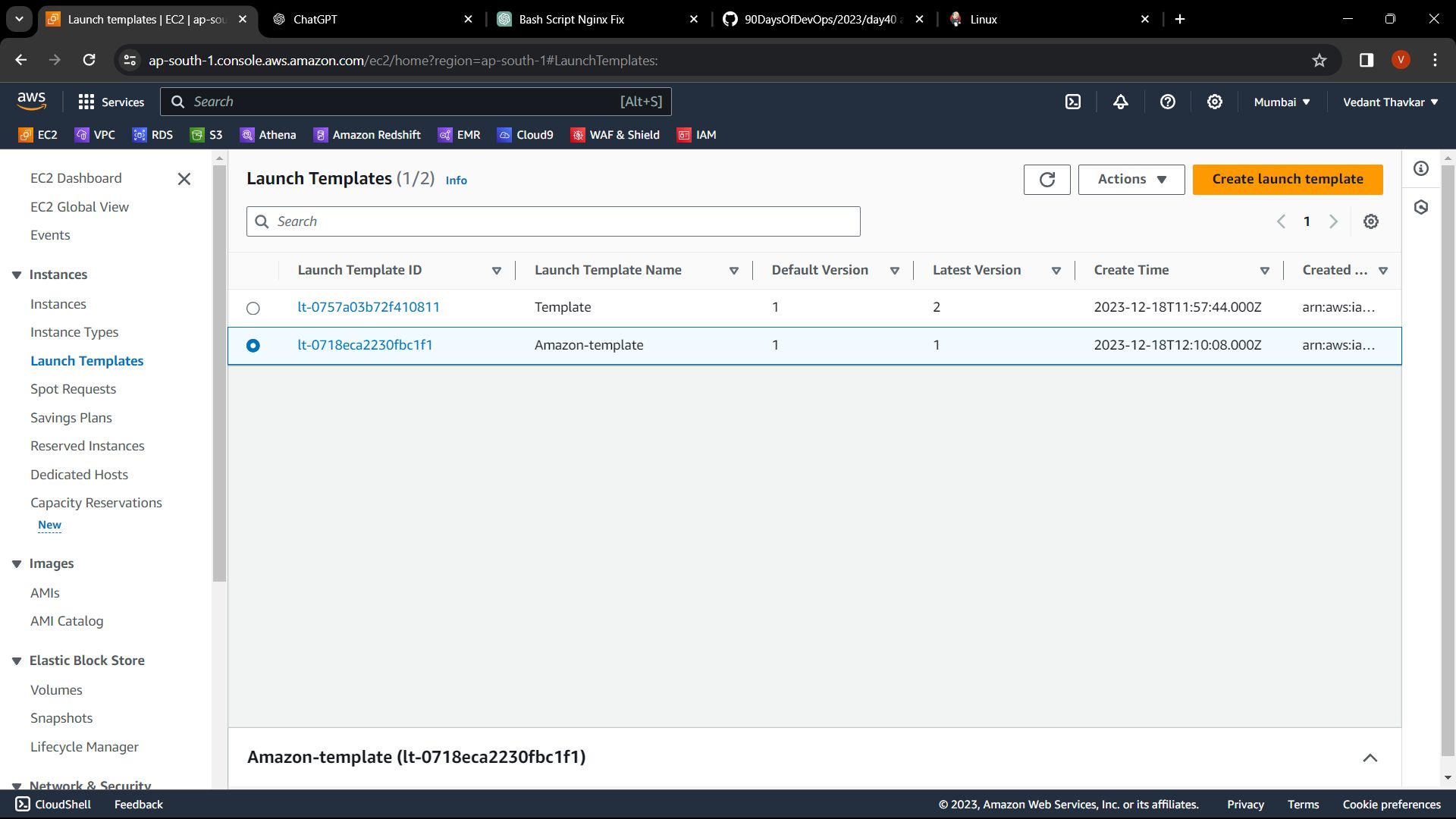
Launch templates are an incredible feature of Amazon EC2 that can significantly simplify and expedite the process of launching instances. They allow you to save and reuse configuration information for your instances. Here's a quick guide on creating a launch template:
Navigate to the EC2 Dashboard: Open the Amazon EC2 console and head to the "Launch Templates" section.
Create a Launch Template: Click on the "Create Launch Template" button. Provide a name, version description, and other details.
Configure Instance Details: Specify instance type, key pair, network settings, and other details according to your requirements.
Add Storage and Tags: Set up storage volumes and add any necessary tags.
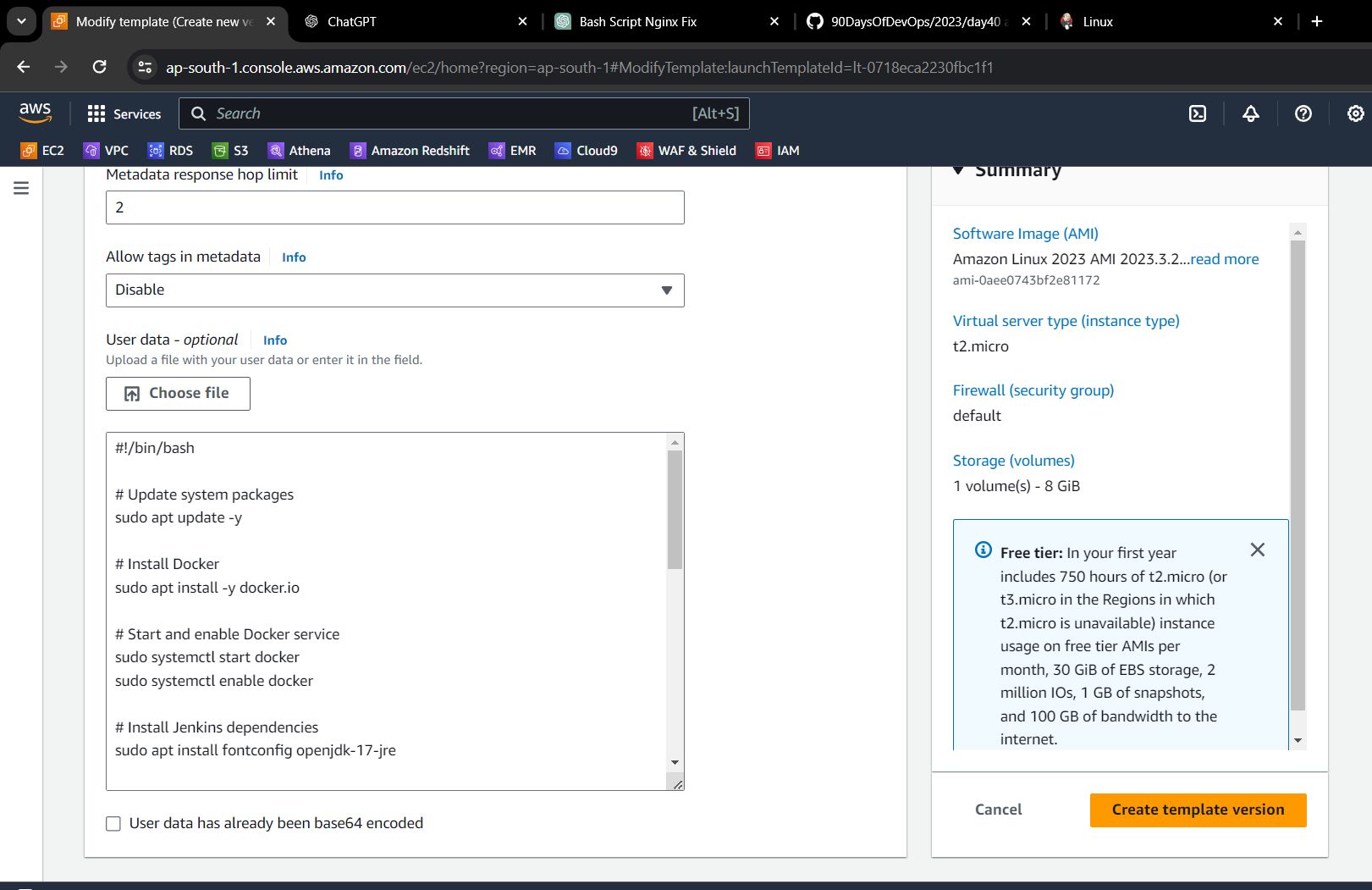
Advanced Details: Include advanced details like user data scripts if needed.
Create Launch Template: Review your configuration and create the launch template.
Now, let's move on to the exciting part - using this launch template to create instances!
Instance Types
Amazon EC2 offers a variety of instance types optimized for different use cases. Choose the right combination of CPU, memory, storage, and networking capacity based on your application's needs. Explore the available instance types and sizes to fine-tune your resources.
AMI (Amazon Machine Image)
An AMI is a pre-configured virtual machine image, including the operating system and other software. It's a crucial component when launching instances. Leverage AWS-supported AMIs or create your own for consistent and repeatable deployments.
Task 1: Create a Launch Template with Amazon Linux 2 AMI and t2.micro Instance Type with Jenkins and Docker Setup
Follow these steps:
Create a Launch Template:
Choose Amazon Linux 2 as the AMI.
Select t2.micro as the instance type.
Configure additional settings such as key pair, network, and storage.
User Data Script:
- Utilize the Day 39 User data script for installing Jenkins and Docker. Customize as needed.
Launch Instances:
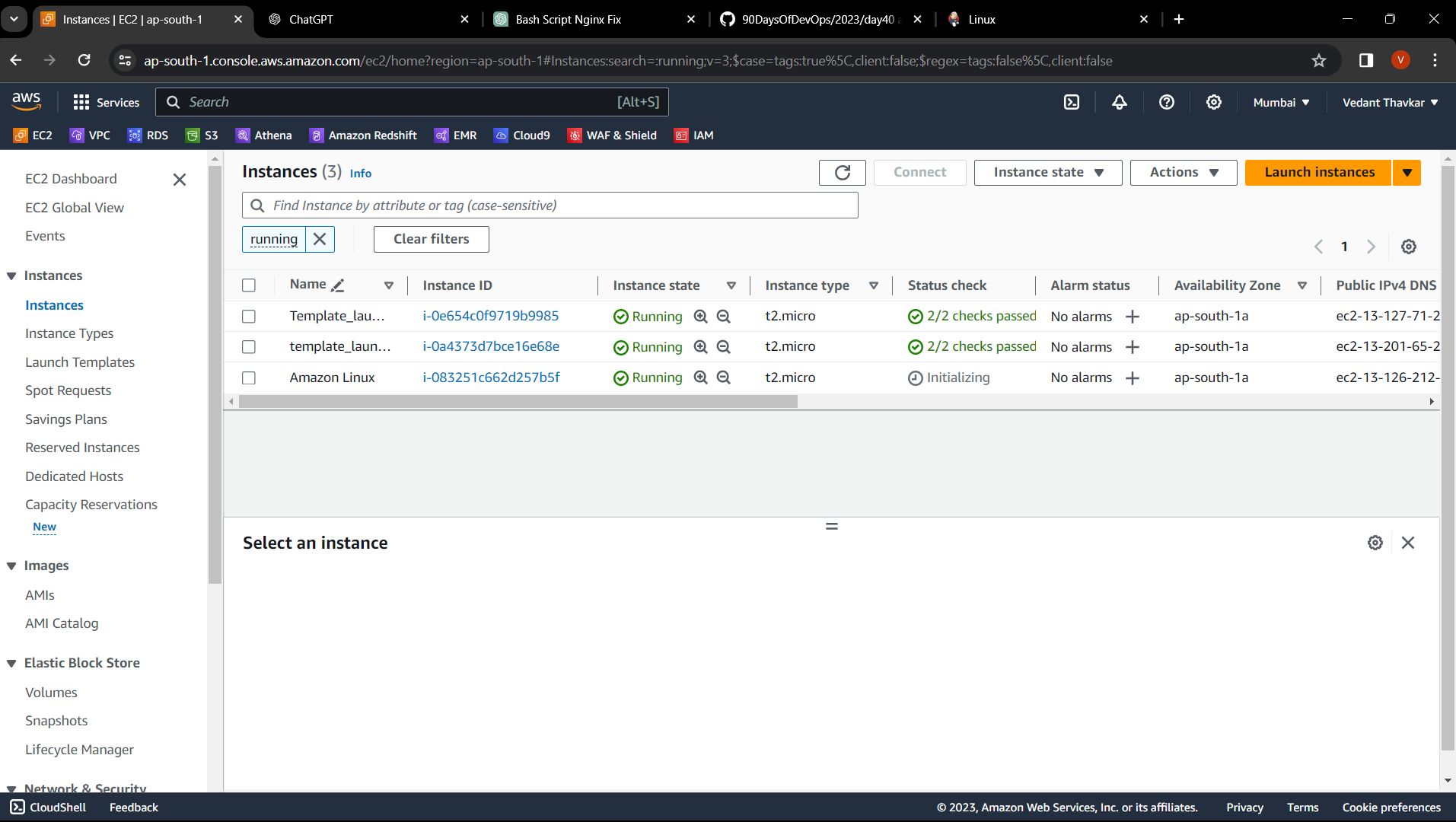
Head to the EC2 Dashboard.
Click "Launch Instance" and select the launch template you just created.
Specify the number of instances to be launched.